Search Execution
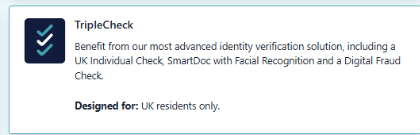
Once logged in to the platform, you will see a list of tiles. Select SmartDoc for a standalone document verification, or Triple Check if you wish to run this with a UK Individual and Fraud Check.

Complete the Input Form
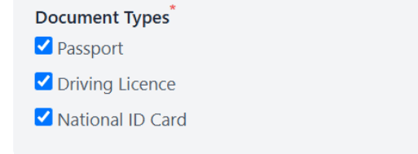
Select Document Types:
- Three Document Types are available with Daon currently.
- In the example below, all three can be used by your client. Depending on the residency of the client, you can customise these per search.
- Please note that although up to three documents may be selected, only one document type will be used to complete the SmartDoc journey
Select Scan Type
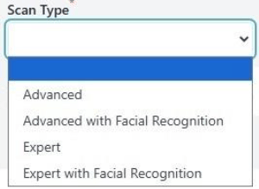
The Scan Type represents the service options available:
- Advanced: Automated Document Verification
- Advanced with Facial Recognition: Automated Document Verification PLUS Facial Recognition
- Expert: Document Verification with Human Validation
- Expert with Facial Recognition: Document Verification with Human Validation PLUS Automated Facial Recognition
Finish Input Form
You will need to complete the remaining details to commence the search. Mandatory fields are displayed with a red asterisk*
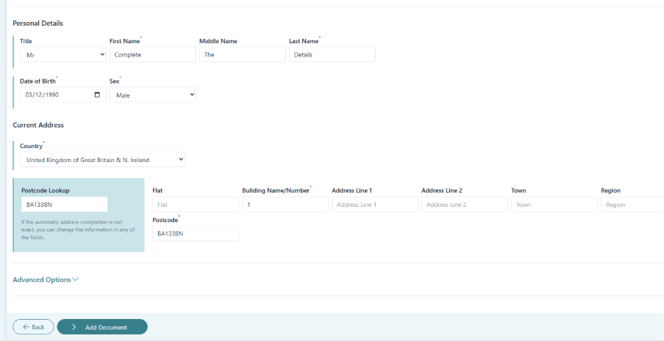
Once complete - Select 'Add Document' button at the bottom of the page.
Upload Documents
Send a Notification
Confirm the method you will use to complete the document verification process:
- Upload Now: Enables the manual upload of a document
- Request From Client: Enables you to send a request to the end user (recommended)
Option 1 - Upload Now
If you wish to upload a copy of the document directly into the Smartsearch platform:
- Select ‘Upload Now’
- Select the Type of document you wish to upload (Passport, Driving Licence, National ID Card)
- Drag and Drop a copy of the document or upload it from your device
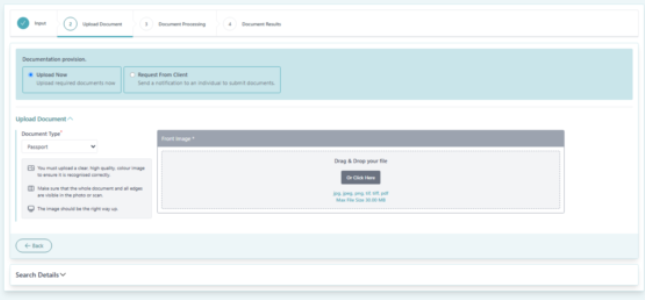
Document quality standards - Please refer to the "SmartDoc - Image Quality Specifications" article for detailed information regarding document quality requirements. For example, digital or black and white scans are not acceptable.
Option 2 - Request from Client
To use the Mobile Journey:
- Select ‘Request from Client’ (label 1) and then ‘Manage Notifications’ (label 2)
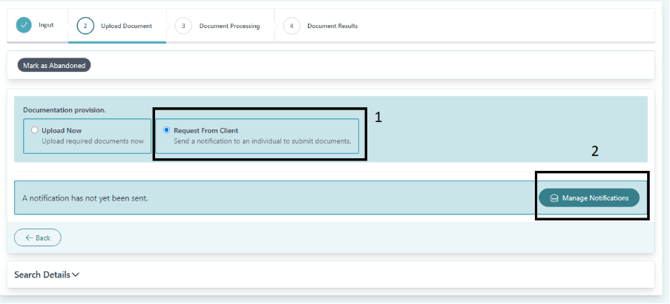
• Select the delivery method, as below, via email, SMS or manual (copy link to send through your own workflow).
• Insert the mobile number/email of the individual who will complete the mobile journey
• Select the ’Request from Client’ button[T
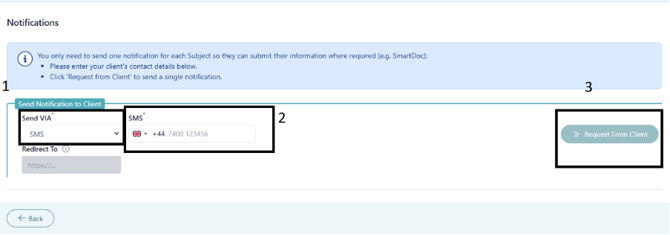
The end user will receive a link and can complete the journey. To understand the journey your subject undergoes, refer to "SmartDoc - The Full Journey", and further in-depth guidance is found in "How to complete the SmartDoc Mobile Journey - End User Guide".
View Results
Once your client has completed the journey – you will be able to see the result within the platform. There are a few ways to achieve this:
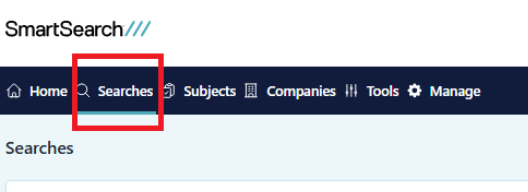
- Navigate to the ‘Searches’ page and see the search you submitted on there. You can click ‘View’ to see the specifics.
- Results can also be viewed from the Subjects Page:
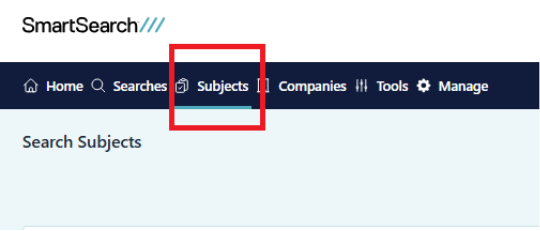
- Results of the search will be loaded and you can then navigate through each of the fields to assess the outcome and follow your own compliance procedures.
Interpreting SmartDoc Results
Below is a breakdown of the fields of data returned as part of the search:
Summary Table Section 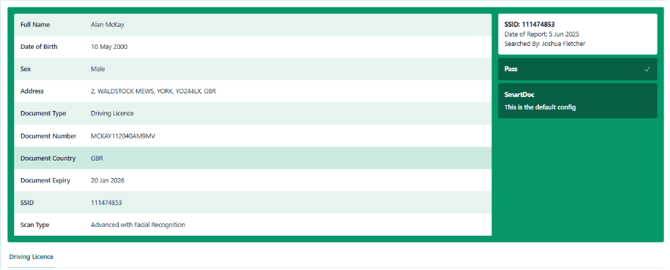
|
Field |
Purpose |
|
Full Name |
The full name, as input by the individual creating the search at the time of the SmartDoc submission. |
|
Date of Birth |
The Date of Birth, as input by the individual creating the search at the time of the SmartDoc submission |
|
Sex |
The Sex of the person, as input by the individual creating the search at the time of the SmartDoc submission |
|
Address |
The address, as input by the individual creating the search at the time of the SmartDoc submission |
|
Document Type |
The Document Type which was selected for the document provided |
|
Document Number |
The Document Number that was extracted from the document in the SmartDoc. |
|
Document Country |
The Document country that was extracted from the document within the SmartDoc search |
|
Document Expiry |
The Document Expiry Date that was extracted from the document within the SmartDoc search |
|
SSID |
SSID of the search you have created |
|
Scan Type |
Which Scan Type was used for the search. |
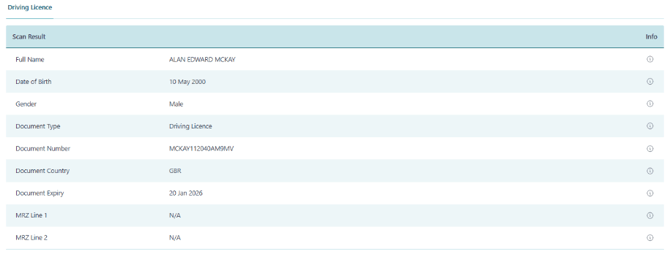
Scan Result Section
|
Field |
Purpose |
|
Full Name |
Within the Scan result section – this is the Full Name as taken from the Document provided. |
|
Date of Birth |
Within the Scan result section – this is the DOB as taken from the document provided. |
|
Sex |
Within the Scan result section – this is the Sex as taken from the document provided. |
|
Document Type |
The Document Type as provided from the document provided |
|
Document Number |
The Document Number that was extracted from the document in the SmartDoc. |
|
Document Country |
The Document country that was extracted from the document within the SmartDoc search |
|
Document Expiry |
The Document Expiry Date that was extracted from the document within the SmartDoc search |
|
MRZ Line 1 |
If the document has a MRZ – Line 1 is displayed here. Otherwise, N/A. |
|
MRZ Line 2 |
If the document has a MRZ – Line 2 is displayed here. Otherwise, N/A. |
Document Checks Section 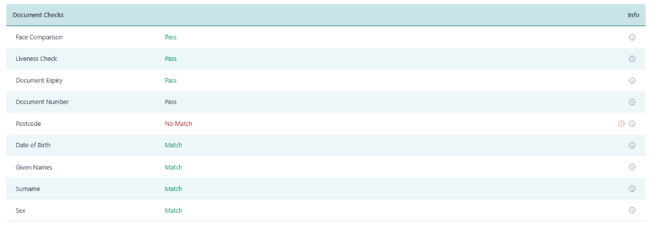
|
Field |
Purpose |
|
Face Comparison |
Displays the result of the Face Comparison checks, if completed. Pass or Fail. Note: It is possible that a Fail outcome can be output here but an overall Pass is achieved – if the search went to Manual Review and was Approved by the Reviewer. |
|
Liveness Check |
Displays the result of the Liveness Check. Pass or Fail. Note that if the Liveness Check fails – the document verification journey will end. |
|
Document Expiry |
Is the document in date and has not expired? If it has expired – this will return a Fail. If it is in date, it will Pass. Some documents have no expiry, in this case it displays N/A. |
|
Document Number |
Document Number validity check. This can be Pass or Fail or N/A. A N/A or Fail would not necessarily lead to an overall Fail outcome. |
|
Postcode |
If available, compare the Postcode inputted at the time of the search versus the output from the document. Match or No Match. |
|
Date of Birth |
If available, compare the Date of Birth inputted at the time of the search versus the output from the document. Match or No Match. |
|
Given Names |
Compare the Given Name inputted at the time of the search versus the output from the document. Match or No Match. |
|
Surname |
Compares the Surname inputted at the time of the search versus the output from the document. Match or No Match. |
|
Sex |
Compares the Sex inputted at the time of the search versus the output from the document. Match or No Match. |
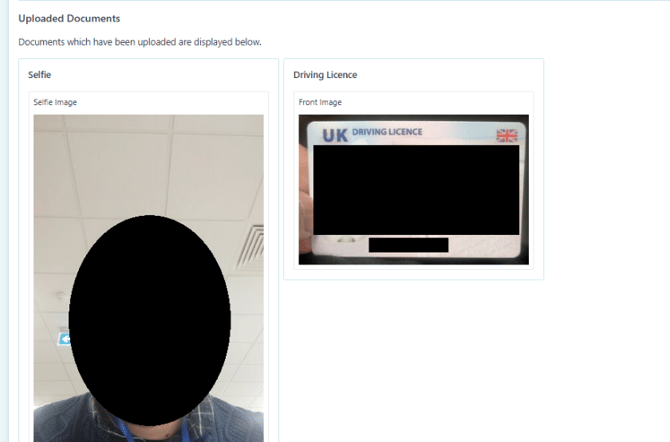
Uploaded Documents
- Each of the uploaded documents provided by the user are displayed on the platform, alongside the Download Full Report PDF report.
- Due to our GDPR policies, these images will be removed from the platform after 30 days. You may retain them on your files by downloading the report within this interval.
Manual Review
Searches that do not pass the automated checks during the document verification journey—but where all required document images have been successfully submitted—will be routed to Manual Review.
This process is handled by Daon’s EU-based team of highly trained document verification experts, who support a wide range of clients, including SmartSearch. Working closely with Daon’s teams in Ireland, they ensure a consistently high standard of service through:
- Ongoing quality control, including outcome sampling, dip testing, and continuous training.
- Holistic assessment, where submitted ID documents and selfie images are reviewed together to determine an overall outcome.
Where searches are manually reviewed:
-
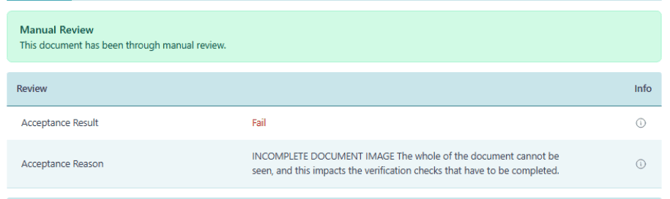
Outcome comments will appear at the top of the result, clearly stating whether the verification is a Pass or Fail.
- These comments will also include the rationale behind the decision, providing valuable context for client follow-up.
Note - Searches with missing images (e.g. no selfie or incomplete document upload) will not be sent to Manual Review and will be marked as incomplete.