
-
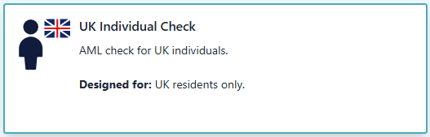
Log in to your account and select “UK Individual” from the dashboard.
-
Enter Search Reference (Optional): This field is not mandatory. You can enter any internal reference you use. It will help you retrieve the search later and will be attached to the final report.

-
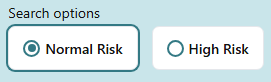
Select Risk Level:
- Low Risk is preselected as the standard option.
- Some clients may choose High Risk for large transactions or if they have never met the client before.
- Selecting High Risk increases the amount of data required for the client to pass.
-
Enter the client’s name and ensure it is spelled correctly.

-
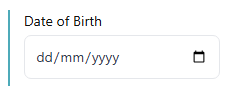
Date of Birth (Optional): Not required, but recommended if available, as it makes the search more robust.
-
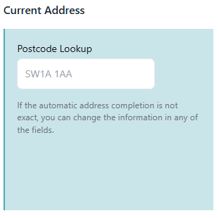
Enter the postcode and select the correct address from the automatic dropdown list.
-
If the address does not appear in the dropdown, manually enter it in the relevant fields.

-
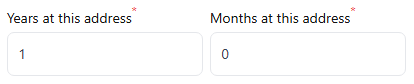
Years at Address: This does not need to be changed or known. We will still return all available data linking the person to that address. This is useful if you want to check against credit records associated with the client’s previous address. If you do want to search a second address, please enter less than 1 year into this field. (see UK Individual Deep Dive).
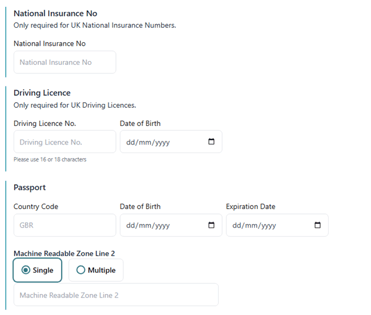
- Additional Information (Optional): You can add extra details such as a passport number, driving licence number, or National Insurance number. These fields enable an algorithmic check to confirm the number is correctly structured for that document type. While this does not verify the authenticity of the document, a successful algorithmic check can contribute one Primary data point, which may support a Pass outcome when combined with the other required Primary checks for your selected risk level.
-
Click “Results” to submit the search and view the results.
