
1. The "Abandoned" result - What if my client never completes the journey?
To view the status of searches:
- Navigate to the searches page: https://app.smartsearch.com/searches.
- The fields below will show you that the user started, but did not finish the journey.

You can also see this record in the Result for the SmartDoc by clicking the View button under Actions:

The message below features on the result.
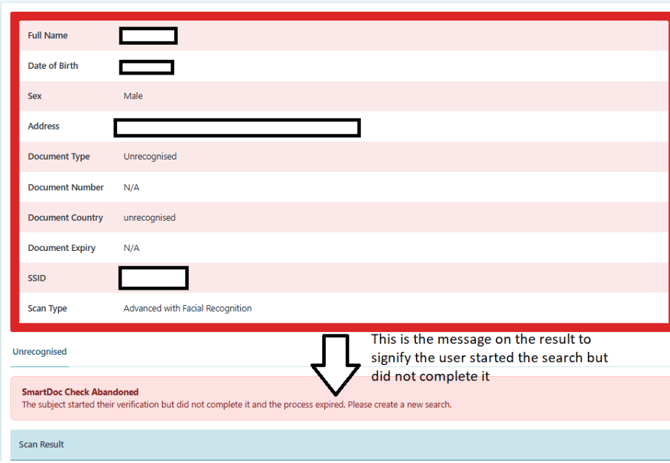
By clearly identifying incomplete journeys, you can proactively follow up with clients who did not complete the process.
Costs - In these cases, as long as the user accepted consent, beginning the journey, then the SmartDoc will have been charged to your credits.
2. Which ID documents can I use for international individuals?
Any government-issued, physical ID document in the given country is acceptable to verify through SmartDoc, exclusively including: Passport; Driving licence; National ID card.
Our SmartDoc check utilises verification technology from our reliable data partner, DAON, which references previous ID formats checked with their software, so the more common the document is, the more likely the verification is to succeed.
Recommendation - Where it is possible to use a passport for an overseas individual, it is our recommendation that you do so, as these are the most reliable IDs to verify. However, there is a high success rate for a wide range of national ID formats.
3. Why has this SmartDoc Failed?
When receiving the results for a SmartDoc, if this does returns a "Fail" result, there are a few ways of identifying the reasons for this.
Every SmartDoc result that fails should display either the system's reason for rejecting the document, or, if passed on to manual review, the notes from the human reviewing the document.
Advanced Scan
If this has not passed to manual review, the likely result is that the advanced scan detected that the image is a digital scan, black and white, or contains other signs of uncertainty that could point to fraud. If you scroll further down the results, you may identify particular fields that returned "Fail", which can point you to your next actions (e.g. expiry date in the past or incorrect date of birth). Additionally, the scan may have been unable to pull information due to poor image quality.
Manual Review
If passed to manual review and rejected, the comments provided should always provide context as to why this hasn't been verified. See below the points that are assessed:
• Document image quality assessment
• ID document image processing (for document recognition, OCR and photo
extraction)
• Document paper copy detection
• Document photo substitution detection
• Document attack detection (incl. screen replay)
• Face image quality assessment
• Face Liveness, Presentation Attack Detection (PAD)
• Face Injection Attack Detection
• Face biometric matching
If still uncertain - Please refer to the "SmartDoc - Image Quality Specifications" article for further information regarding potential reasons for a fail.
If the result does not display reasonable context as to why a fail has been returned, please reach out to your account manager at SmartSearch.
4. Why hasn't my client received the link?
When requesting document upload from your client, you may either send the link through to them via SMS or via Email. There are a couple of key points to note when sending this.
Firstly, we highly recommend that the subject opens the link on their mobile device, regardless of email or SMS, as these are the devices with sufficient image quality for verification purposes.
Secondly, if a link is not received when sent by SMS, it is possible that the mobile provider your client uses is blocking SmartSearch as potential spam. To avoid this, we recommend that you send the link via Email when possible, as this more reliably gets through to your client.
Lastly, ensure that any Spam folders are checked to ensure receipt of the link.
5. Was I charged for this SmartDoc?
When manually uploading documents, the charge point for SmartDoc is the instant that you click "Upload Document".
If you've sent a link to your subject for document upload, you are charged at the point that they accept consent to provide these materials. After this point, if the subject abandons the upload, with no activity after 15 days, the SmartDoc will become abandoned, and the result will return as such.
The points at which you are charged for a SmartDoc check, and credits are taken from your account, are important to be aware of. The full process, including these points, is available for your review in "SmartDoc - The Full Journey".
6. I'm trying to complete the mobile journey, but it isn't working
As an end-user for the mobile journey, here is a table of quick fixes to some common issues you may have run into.
|
Issue |
What’s happening |
How to fix it |
|
“Use a mobile device” message appears when starting. |
After clicking the link and agreeing to the terms, you may see a message saying you need to use a mobile device. |
|
|
“Browser not supported” message appears when starting. |
Your browser isn’t compatible. Chrome and Edge work best within the mobile journey. |
|
|
“Screen resolution too low” message appears when opening the camera. |
Your phone’s display settings may have the font & display too large, which can lead to issues. |
|
|
Camera won’t load for selfie. |
You see a black screen when asked to take a selfie. |
|
|
Selfie won’t capture |
You’re lined up with the oval at the selfie stage, but the photo isn’t being captured. |
1. Follow on-screen instructions. 5. If persists, use a different mobile device.
|
|
“Wait 5 minutes” message appears |
You may have opened the link in multiple tabs or devices. |
1. Close all pages/tabs. |
|
Document won’t auto-capture |
You’ve lined up your document, but it won’t take the photo. |
1. Make sure the document matches the selected type and country. |
|
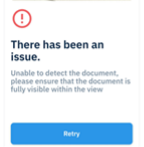
Document photo flagged an issue |
Your document image didn’t pass quality checks. |
1. Follow the feedback shown. |
|
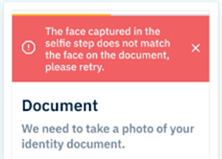
Selfie doesn’t match document photo |
You’re told the faces don’t match, but it’s you. |
1. Re-capture the document image without glare. |
|
Don’t have all documents yet |
You’ve started the journey but don’t have everything ready. |
1. Close the window to pause. |
If you have any further questions that these articles haven't answered, please reach out to your account manager at SmartSearch for assistance.