
1. Can I be a user on multiple SmartSearch accounts at once?
If you require access as a user to two different SmartSearch accounts, this is simple to achieve. Similarly to setting up as a first-time user, this will require the Admin of the new account to send an invite link to you via email.
Before clicking this link, you'll need to sign out of your account on app.smartsearch.com. Clicking the link, once signed out, you will be prompted with "Login" or "Register". As you are registering into this account for the first time, click "Register" and fill out your details.
Once registered, whenever you sign in going forward, you will be prompted with a dropdown of the accounts to which you have access before proceeding.
2. Who receives due diligence (MLRO) alerts?
MLRO alerts are the email notifications that inform of any updates to the watchlists relevant to you and your monitored clients. Those that receive these alerts are typically assigned by your account manager upon first signing up with SmartSearch.
To change the email addresses that get notified of these alerts, you'll need to ensure that these are set up as users on the SmartSearch account, then proceed to inform your account manager of the desired changes. They will then action these changes for you.
3. Why can't I see searches?
If you are having issues with visibility of subjects or searches on the platform, the most likely cause is your user permissions. Regular "User" level individuals only have access to view the searches that they have run themselves, whereas "Manager" and above are able to see all searches run on the account.
To find out more about these permissions, refer to the "User Roles and Permissions" article. The Admin user on your account will be able to edit user permissions according to necessity, advice for which can be found in "How to Manage Users".
4. Why isn't the user invite link working?
In the case that the user invite link has been received, but upon clicking does not take the user to Registration/Login, the most likely scenario is that the link has expired, and the account Admin will need to click "Re-send" on the User Invites page.
However, another reason that the link may not work is that you are signed into another account/user profile. Fully sign out on SmartSearch, and clear your cache and cookies before clicking the link once more.
5. How do I reset my password?
To reset your password, in the event that it has been forgotten, go to the usual login page, app.smartsearch.com/login, and click "Login", followed by "Forgot Your Password?".
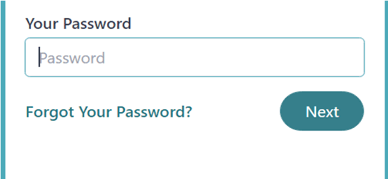
You'll then be prompted to enter your email address, and request to change your password. This will send a link via email, which you may click. Finally, this will take you to the necessary page to update your password.
If you have further questions that are not answered here or in the rest of the articles in this knowledge base, we recommend that you reach out to your account manager for assistance.