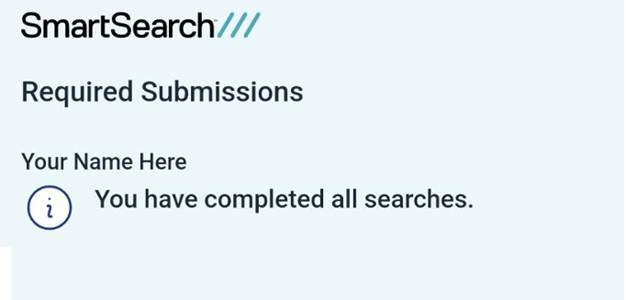
SmartDoc provides the capability for you to successfully verify your identity documents, safely and securely, via a mobile journey. No app download is required, and the process takes minutes. At each step, we will provide guidance to help provide the best quality images.
SMS and Consent acceptance
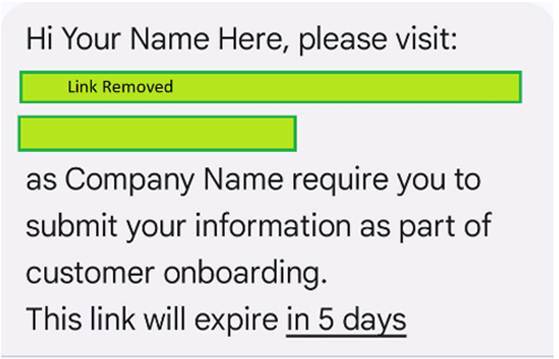
• Click the link provided via SMS or email on your mobile device.
• You will receive a message from ‘SmartSearch’ which features your name and the company requesting the information:
• Select SmartDoc and then Consent to the Process
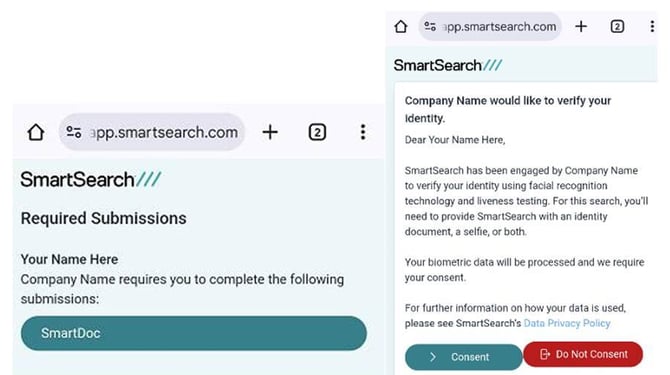
• The Privacy Policy is available to view and click ‘Consent’ to start the process.
• If you choose ‘Do Not Consent’ the company requesting the search will be notified.
Mobile Journey
You will be helped at every stage of the selfie and document capture journey, with guidance before each step.
Note: You will need to approve permission for us to use your camera if requested.
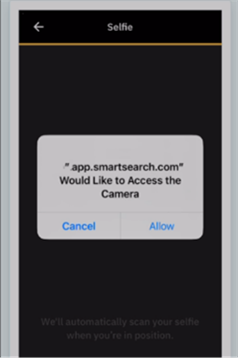
1. Introduction Page
An introduction page informs you which photos are required for the check.
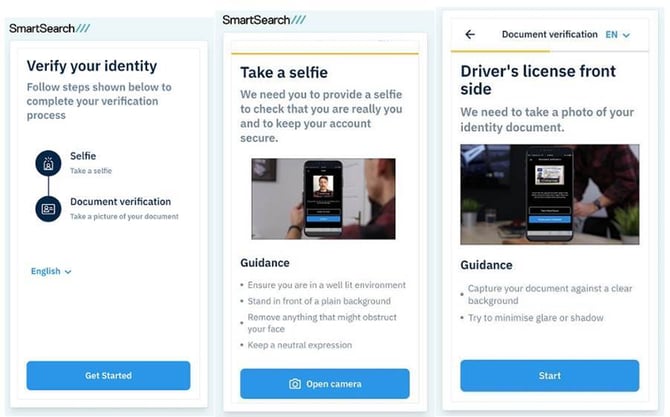
2. Selfie Capture (if requested)
Specific guidance is provided throughout. Messaging provides advice throughout to
help you take the best images.
• A Red or Amber oval indicates there is a problem
• Green indicates the photograph is about to be taken.
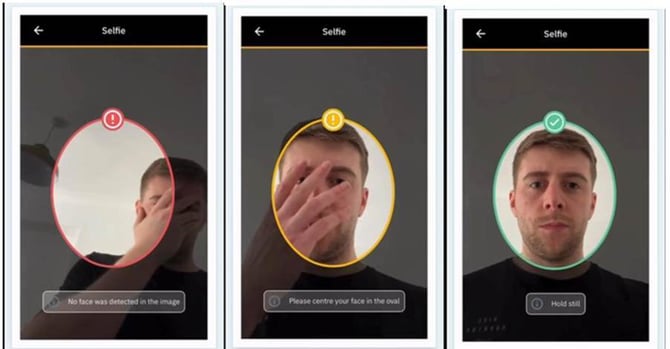
Any issues with the images, you are alerted by consistently updating messaging. If an image is captured, but has an issue, then you will be allowed to retry.
3. Document Capture
If requested, you will be required to submit Document images. If you do not have these available, you may exit the journey and return via the link previously sent to you, within five days.
You will be asked to select:
• Document Country
• Document Type to proceed.
• Documents available for you to provide will be listed here.
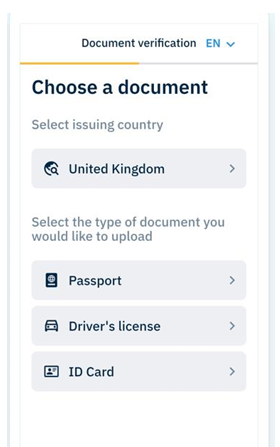
• Full instructions are provided before images are captured, and information is
provided throughout to take the image.
• Ensure that the document you are photographing, matches the type and country you select.
• Images will aim to automatically capture when they are of sufficient quality.
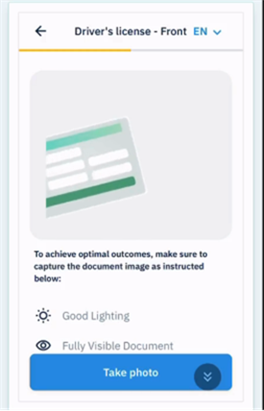
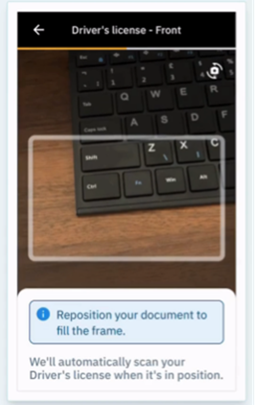
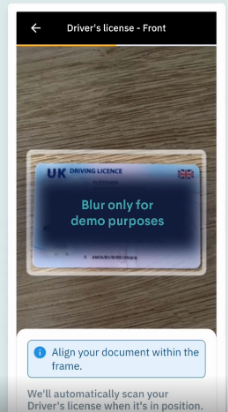
And an example for a Passport & how to use the guidance to take good images.
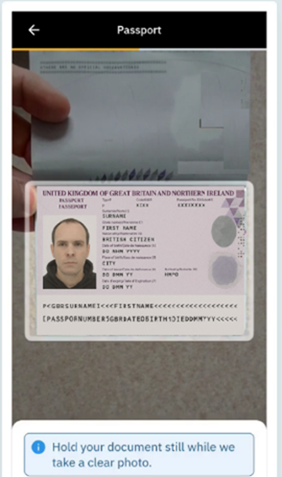
Once the image is of sufficient quality, it will be automatically captured and submitted for evaluation.
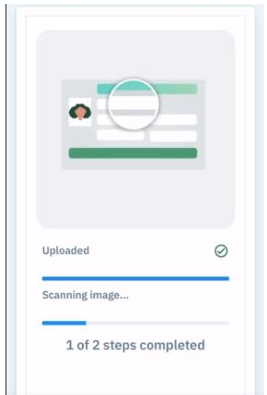
Some document types may require different images, such as a back image.
Image Quality Guidance
- At each stage of the journey – if there are image quality issues, you will be asked to retry.
- Common image quality issues can be resolved by following the instructions. Good guidelines include.
- Capturing the image in a well-lit environment.
- Fully visible document.
- All details visible on the document, with no key details obscured by fingers or other items.
- Kindly be informed that the company requesting this search will have access to view these images. Ensure that your attire is appropriate.
- Here are two examples - these are the most important pages for each document type to capture.
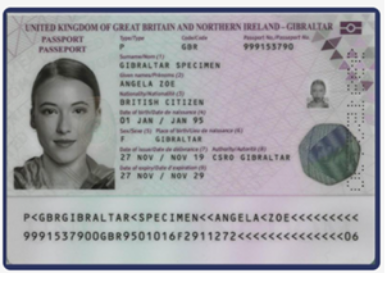
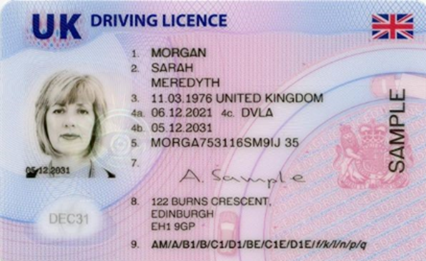
Frequent Image Capture Issues
1. Incorrect document used:
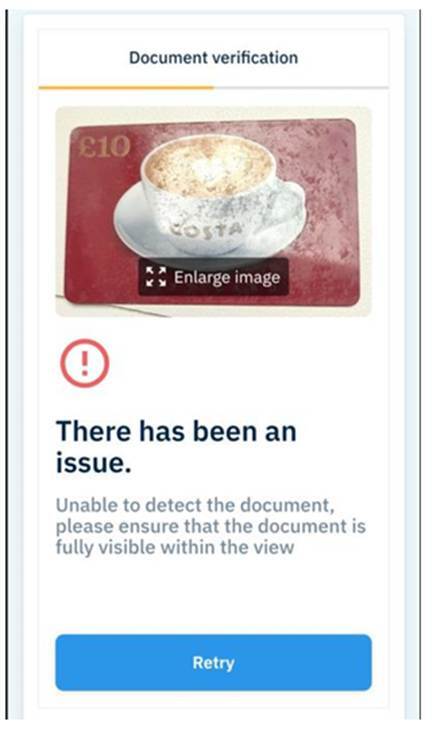
In this example – the document selected earlier does not match provided the
one in the image. Please retry with the document you have selected.
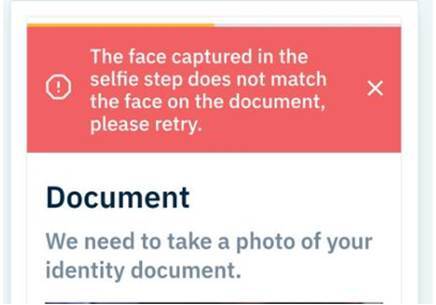
2. Document Image and Selfie Image do not match
• Ensure that the Selfie Image provided is of the same individual pictured in the
Document Image.
• Check the quality of the Document Image when re-taking or select a different
Document.
3. Could not recognise and read the document
Common reasons for this are around poor-quality images. Please ensure that
you follow the instructions on screen, taking the photo in a well-lit
environment, with all four corners visible and no details obscured.
Final Key Points
Pause and Resume the Journey
• At any stage in your document verification process, you can pause the process
and return to it, with your progress saved within five days.
• To exit the process, simply navigate away from the window.
• To return to the process – use the link provided by email or SMS and progress
will resume from where you left off.
• You have five days before your search expires – if this occurs and you are
unable to complete the journey, please contact the company who requested the
search.
Non-Mobile Devices
The document verification journey must be completed on a mobile device. Clear instructions are provided if you access the process on a non-compatible device. Please use a different device to complete the document verification.
Completed Searches
Once complete, you will be navigated to the end-screen, where you will be asked to move on to the next stage of your verification process, if appropriate.